
Premium source. Google Merchant Center is available on Trial, Starter, and Pro plans. It is not included in the Free plan.
Before You Start
You’ll need a Google account with access to the Merchant Center account you want to analyze.Connect Your Account
1
Go to Sources
From the HYPD sidebar, click Sources.
2
Open Google Merchant Center
Find the Google Merchant Center card and click the + button.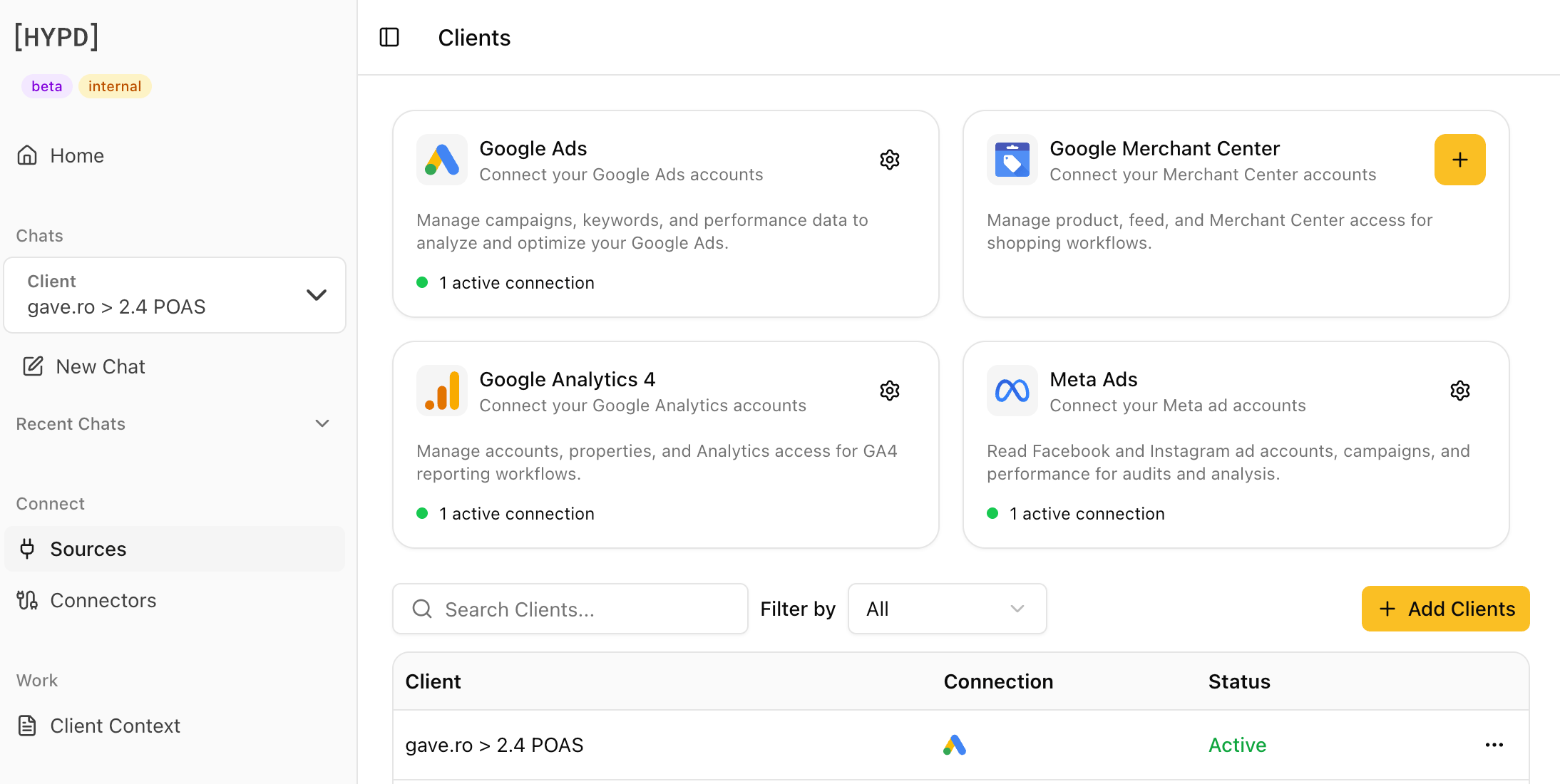
3
Add a connection
In the Manage Google Merchant Center connections dialog, click Connect another Google Account.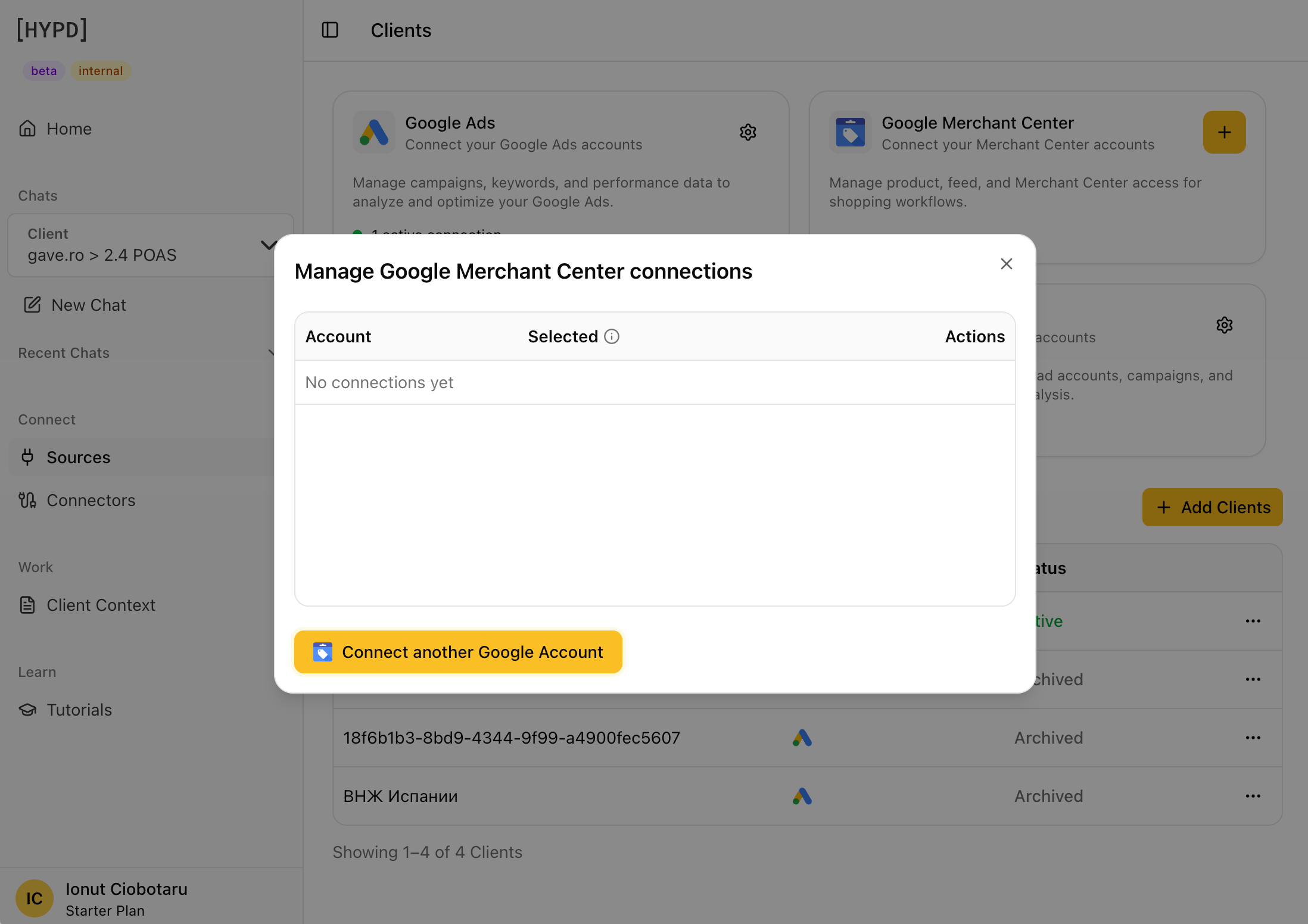
4
Choose Your Google Account
Select the Google account that has access to your Merchant Center account.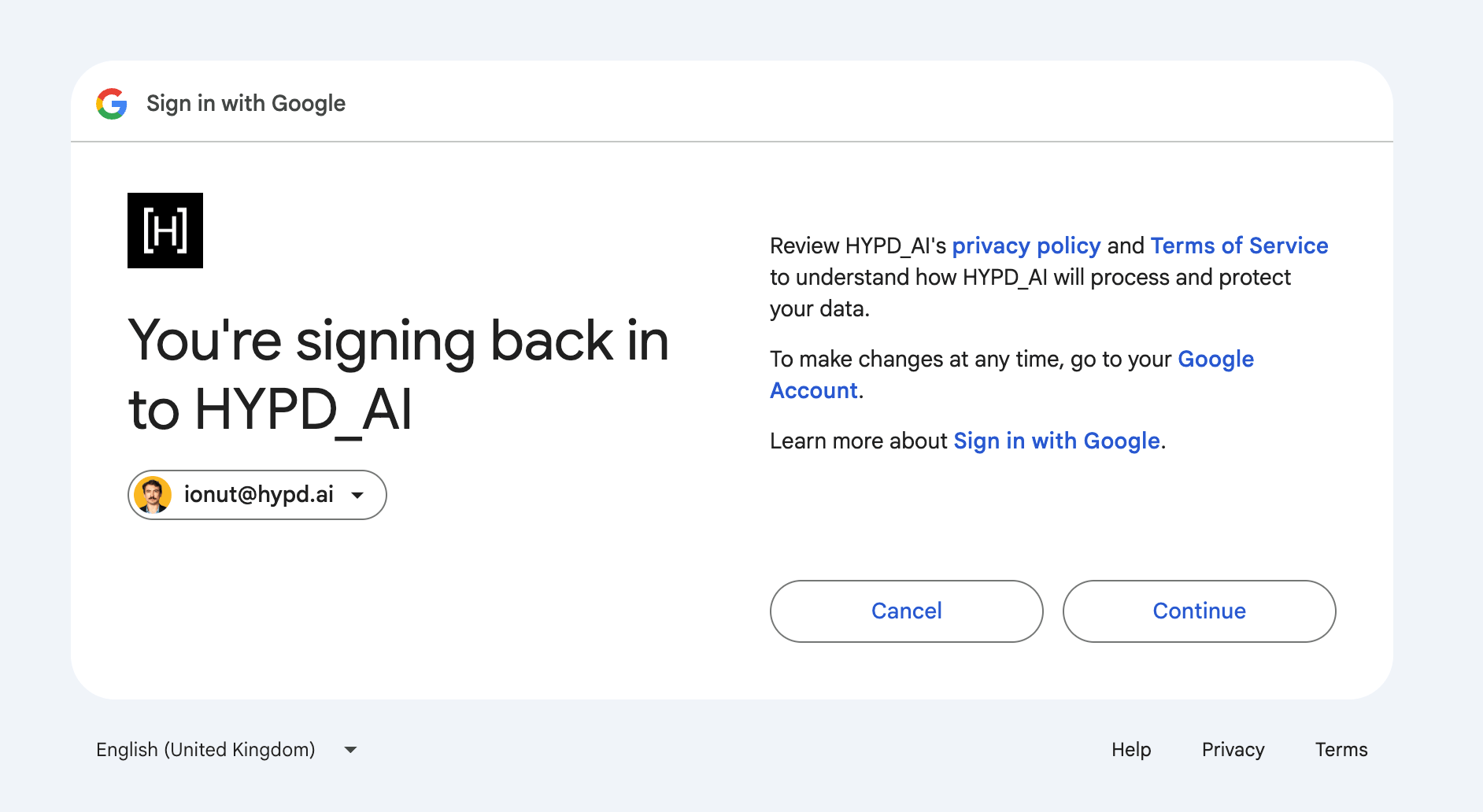
5
Authorize Access
Review HYPD’s privacy policy and terms of service, then click Allow to grant access to your Merchant Center data.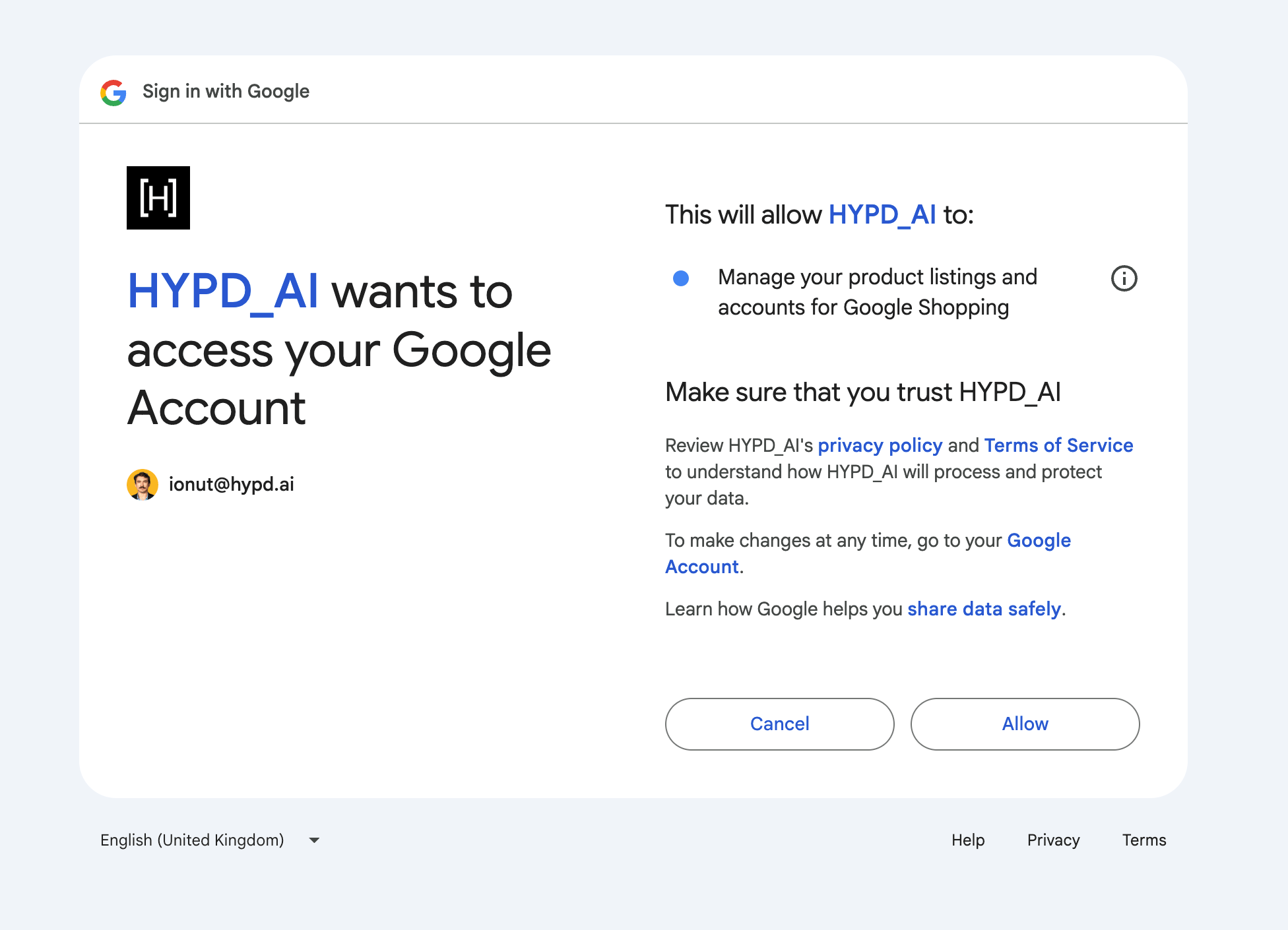
Google’s consent screen reads “Manage your product listings and accounts for Google Shopping” because that is the only Merchant Center scope Google offers. HYPD uses it read-only and never changes your feed. See Permissions below.
Permissions
HYPD requests read-only access to your Merchant Center data. We can see your catalog, product issues, and performance—but we cannot add, edit, or remove products, and we cannot change your feed.You can revoke access anytime from your Google Account permissions.
Troubleshooting
I don't see my Merchant Center account
I don't see my Merchant Center account
Make sure you signed in with the Google account that has access to Merchant Center. If you have several, reconnect and pick the right one.
A product isn't showing in my ads
A product isn't showing in my ads
Ask HYPD to list your disapproved products. A disapproval in Merchant Center removes a product from Shopping and Performance Max until it’s fixed.
I want to connect a different Google account
I want to connect a different Google account
Go to Sources, disconnect Google Merchant Center, then reconnect with the correct account.
Prompts
Next Steps

Google Shopping
Research who wins Shopping placement and how your prices stack up against other sellers.